
Your role
Fleet
Admin.
You run vehicles and the people who drive them, not a site. Who is authorised, what they charged, on whose card, and where. Depot, public, and the driver’s own driveway, on one account.
The fleet console
Everything below lives on your fleet’s own page. The tabs are the job.
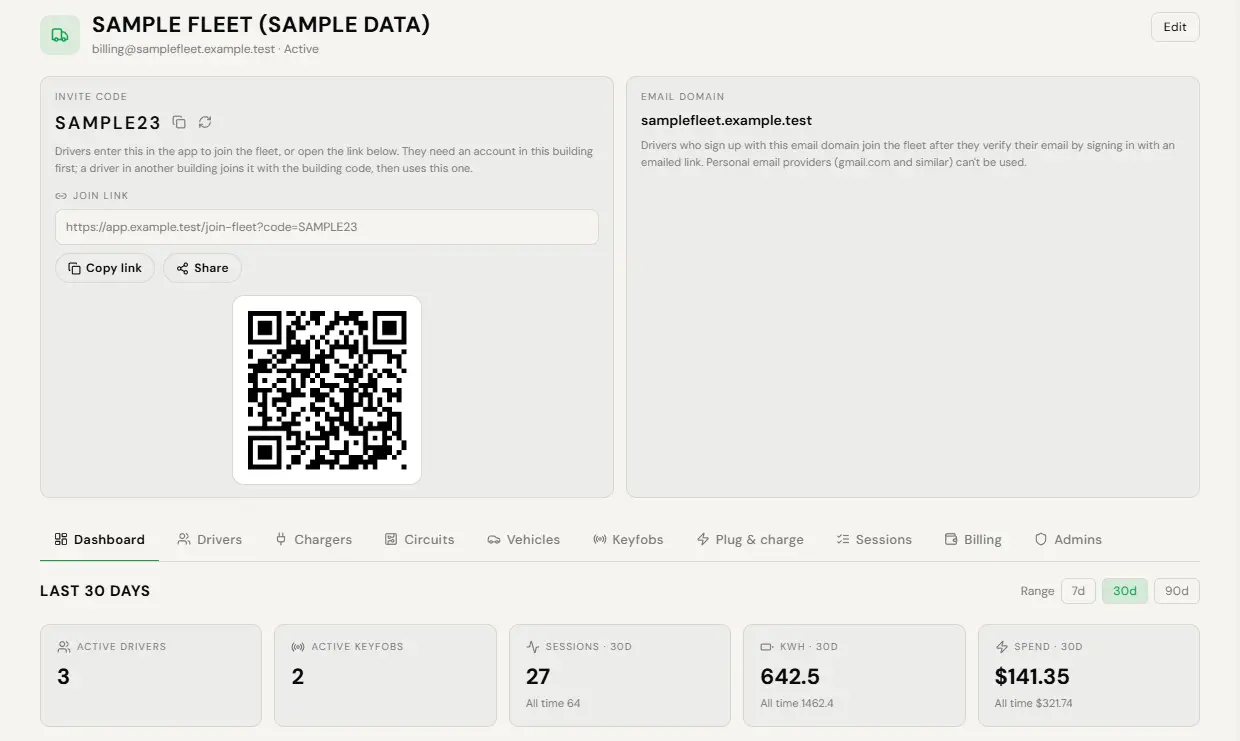
- Dashboard. Active drivers, sessions this period, energy delivered, amount billed.
- Drivers. Who is authorised, what each has charged, and removal at any time.
- Chargers, Circuits and Vehicles. The chargers the fleet runs, the circuits they share, and the fleet’s vehicles.
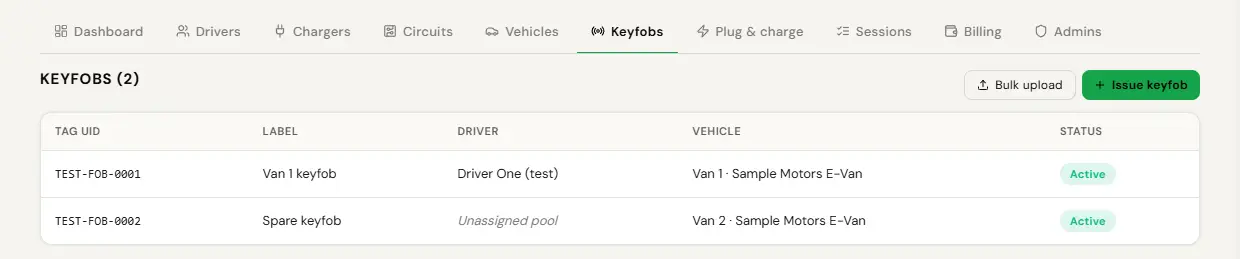
- Keyfobs. Issue, assign and kill an RFID keyfob per driver.
- Plug & charge. Cars that announce their own id at the plug. Link one to a fleet vehicle and driver and it charges on the fleet like a keyfob, with no app and no fee.
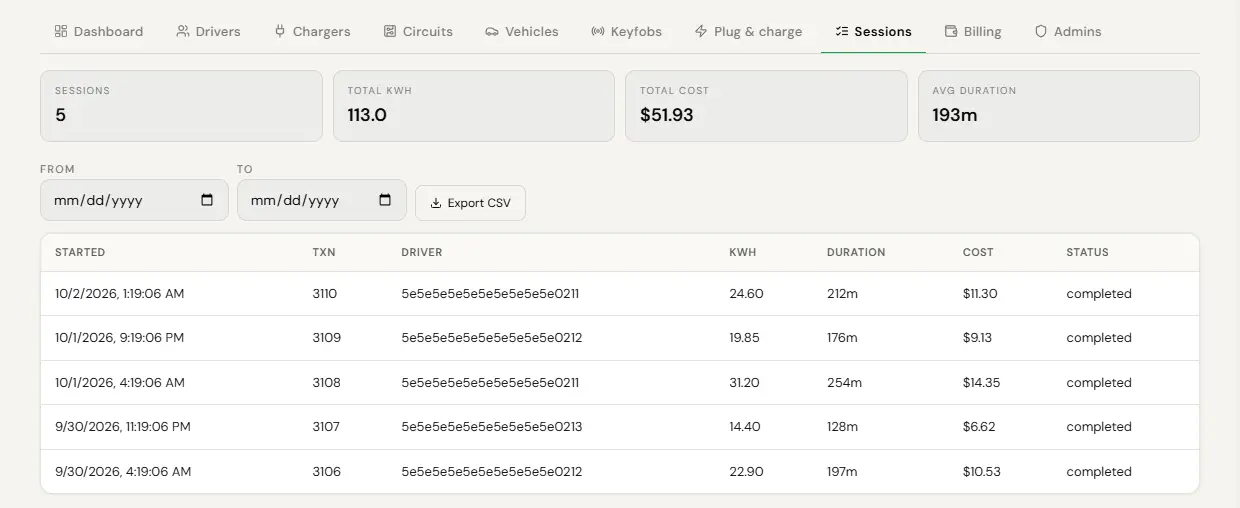
- Sessions. Every fleet-billed session with its start time, transaction, driver, energy, duration, cost and status. Filterable by date and exportable.
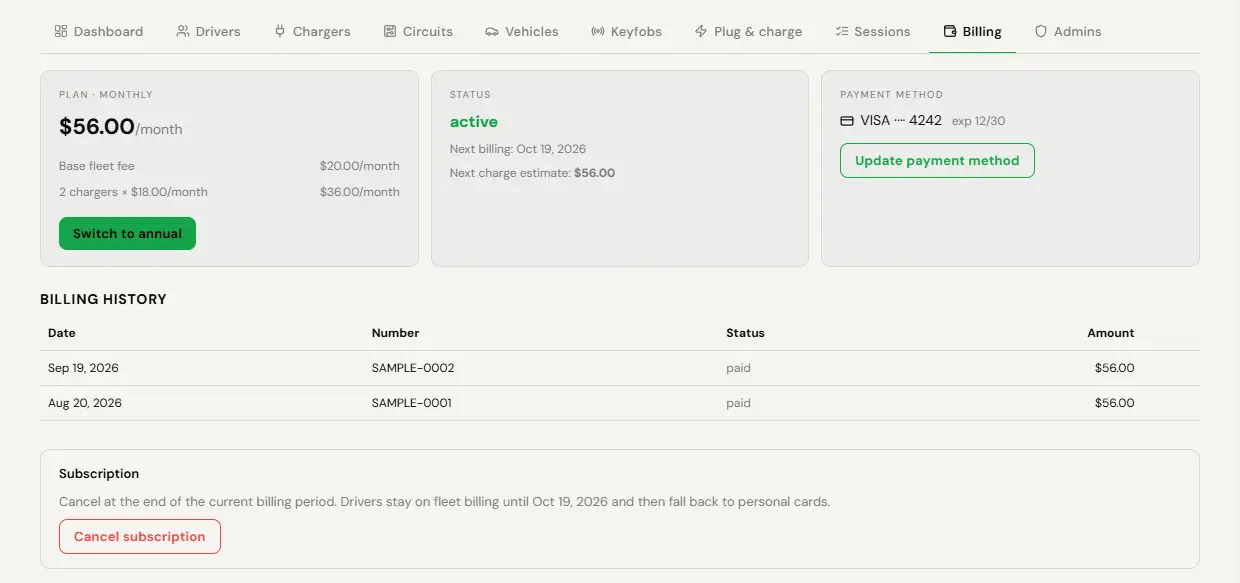
- Billing. What the fleet owes, what it has paid, the payment method on file, the subscription state.
- Admins. Who else can manage the fleet. You can see the list. Adding and removing fleet admins, and renaming the fleet, sit with the operator above you.
A fleet administrator is a driver account with fleet-admin permissions layered on it, not a separate login. That is why you need a driver account first. Removing the grant later removes the administration and leaves the driver account and its history completely untouched.
Getting your drivers on
Three ways in. Use the first for a list you already have, the second for a company you are rolling out to, the third for everyone else.
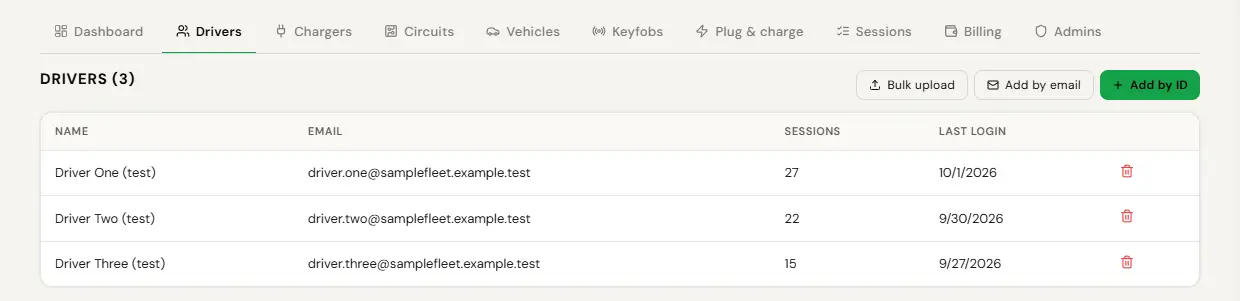
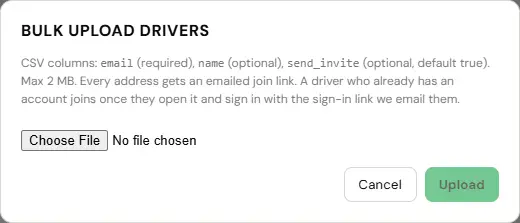
- Open your fleet, then Drivers, and use Bulk upload.
- The only column that matters is email. One address per row.
- Leave send_invite on. Each person gets an emailed join link and joins themselves. A row with send_invite false is skipped and adds nobody.
A name column is accepted and then ignored, so do not spend time tidying it. Drivers name themselves when they sign up.
- Give us the email domain your staff use, for example yourcompany.com.
- Anyone who signs up with an address at that domain is attached to your fleet automatically.
- There is nothing to distribute, nothing to chase, and nothing to maintain when you hire someone.
This is the answer to "we have ninety drivers." It is not a bulk import, it is better than one, because it keeps working after the import would have finished.
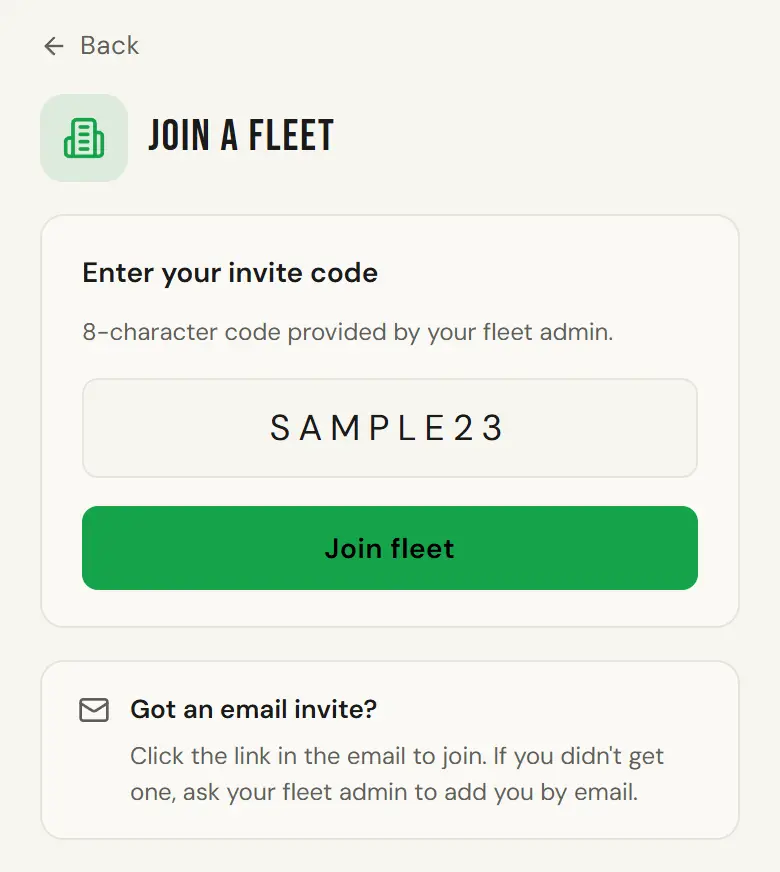
- Take the fleet invite code from your fleet page.
- Send it to the driver with the app link.
- They enter it once in the app and they are on the fleet.
Use this for contractors, for anyone on a personal email address, and for the driver who joined before the domain was registered.
Auto-attribution runs when someone signs up with a password. It does not run when they sign up with Google. A driver who taps "Continue with Google" using their work address lands with no fleet, looks like a platform fault, and is not one. If your company is on Google Workspace, assume the domain will miss people and bulk upload the list as well.
- Open Drivers and remove them.
- Future fleet-mode sessions stop immediately.
- Then go to Keyfobs and cars and kill their keyfob.
Removal stops what happens next. It does not reverse a session that already ran, and it should not, because the energy was genuinely delivered.
Keyfobs and cards
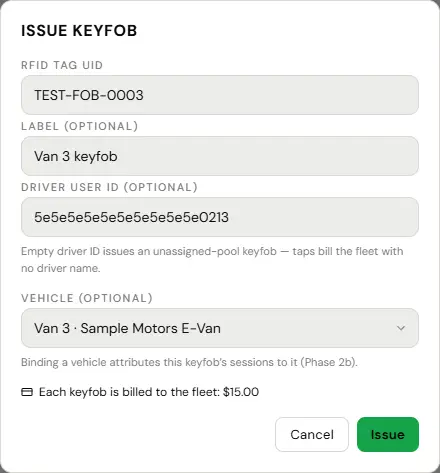
A keyfob is for the driver who does not want to open an app in the rain. It is $15 per fob on a fleet, paid by the fleet rather than the driver.
- Open Keyfobs and cars, or the Keyfobs tab on your fleet page.
- Use Issue keyfob with the tag UID and the driver’s user ID.
- On a tap, the charger asks us who that card is, we answer, and the session starts.
- Have the driver tap the fob at one of your chargers.
- The platform learns the card that way rather than having anyone type a number.
- Assign it to them in the console.
- Open Keyfobs and cars.
- Kill the keyfob. It takes seconds and it is immediate.
A killed fob is refused at the reader and is indistinguishable from a card we have never seen. Nobody standing at the charger learns anything from the refusal.
RFID taps are strictly scoped to the locations you hold. A fob will not open a charger outside your boundary just because it is a valid card.
Fleet mode and personal mode
This is the single most important thing to explain to a new driver, because it is the only thing they have to get right.
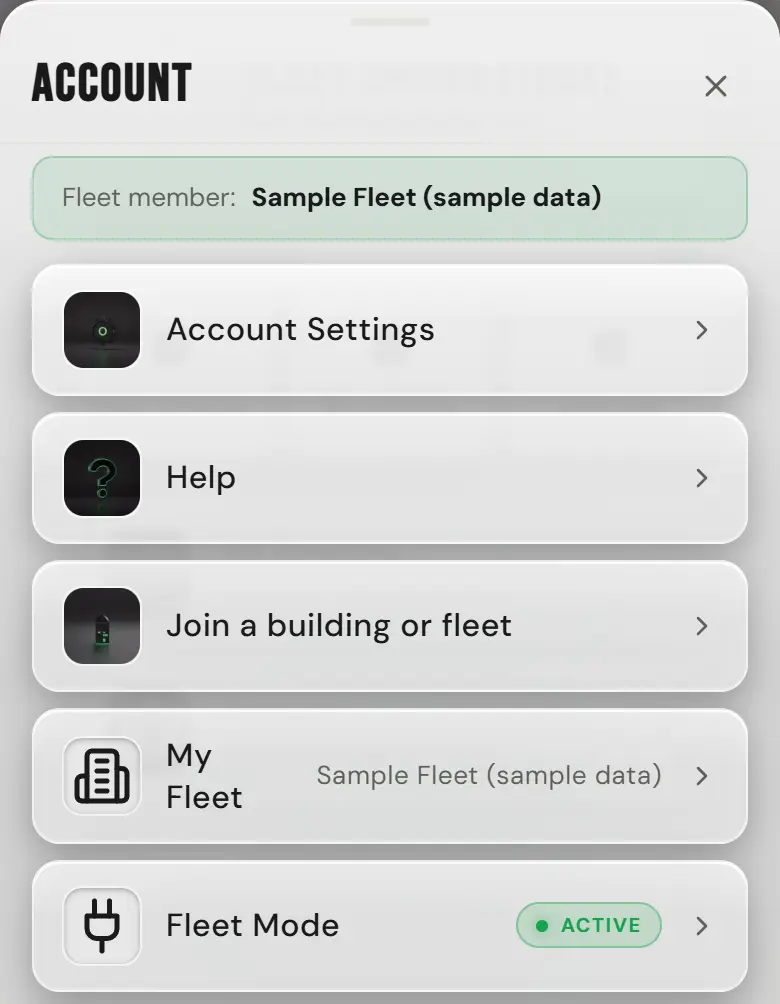
Fleet mode bills the company. Personal mode bills the driver. The mode stays as the driver last set it, from the Fleet Mode row under Menu, Account, or from the FLEET pill in the top bar, which reads PUBLIC in personal mode. The screen before a charge says when the fleet pays, and offers a switch when the charger needs the other mode. Fleet-sponsored sessions do not accrue the driver’s personal points and do not touch their wallet, although energy and session totals still count toward their own history.

A certified charger deauthorises within about two minutes if nothing is connected. That limit comes from weights-and-measures law rather than from us, and it is the single biggest cause of failed charges on the whole network. Drivers who plug in before starting never see it. Put this sentence in your driver onboarding email.
Charging at a driver’s home
A driver’s own charger can be registered as a fleet charging location. Work charging then bills the fleet. Personal charging stays personal. The split is metered at the plug rather than estimated, which is why the number is defensible at expenses time.
The charger belongs to the driver or their household, not to the fleet. Separating household charging from fleet charging depends on the driver starting each session in the correct mode, and we do not adjudicate a dispute about which mode a session should have used. If a driver charges their spouse’s car in fleet mode, the platform will faithfully bill you for it. That is a conversation between you and your driver, and the way to avoid it is to explain the two modes on day one.
Billing and what it costs
- $20 per fleet account per month, or $200 a year.
- $18 per charger per month, or $180 a year, for chargers the fleet owns and operates. A dual-port unit is one charger.
- $4 per managed charger per month, or $40 a year, where the depot needs load management.
- Every annual is ten months, so two are free. No per-session fee, no transaction percentage on your own chargers, and nothing for drivers, the app, the console, support or adding a site.
A fleet driver charging at somebody else’s public charger costs you nothing in subscription. You pay for that energy at the host’s price, the way anyone else would.
- Open Billing on the fleet page.
- Confirm a payment method is on file and the subscription is not cancelled.
- Look for anything sitting in manual review.
If a fleet cannot be charged, the session is recorded as uncollected and flagged for review. We never fall back to charging the driver for a fleet-mode session.
What you can and cannot see
You see each fleet session’s start time, transaction, energy, duration, cost and status, and the driver it is attributed to, shown as a user ID. And nothing else.
Personal-mode charging by the same driver is not visible to the fleet. A driver’s home charger appears to you only for the fleet-mode sessions run on it. That boundary is deliberate and it is not configurable, because the alternative is a product that tracks where your employees sleep.
You are the account holder for this data. You need a lawful basis for holding it, and you agree not to use it to monitor a person’s movements for a purpose unconnected to the charging you are paying for.